




iPhone Bluetooth Keeps Disconnecting? Try These Solutions

Bluetooth is one of the most convenient features on an iPhone, allowing users to connect wireless headphones, speakers, smartwatches, car audio systems, keyboards, and many other accessories. Whether you’re listening to music through AirPods, making hands-free calls in your car, or syncing data with a wearable device, Bluetooth plays an important role in the overall iPhone experience.
However, many iPhone users occasionally encounter a frustrating issue: Bluetooth keeps disconnecting unexpectedly. The connection may drop every few minutes, fail during audio playback, or repeatedly connect and disconnect from paired devices. These interruptions can affect productivity, entertainment, and communication.
Fortunately, most Bluetooth connection problems can be resolved with a few troubleshooting steps. In this guide, we’ll explain why your iPhone Bluetooth keeps disconnecting and walk you through several effective solutions.
1. Why Does iPhone Bluetooth Keep Disconnecting?
Bluetooth connectivity issues on an iPhone can occur for a variety of reasons, including:
- Temporary software glitches in iOS
- Outdated iOS versions
- Corrupted Bluetooth settings
- Low battery levels on connected devices
- Wireless interference from nearby electronics
- Compatibility issues between the iPhone and Bluetooth accessory
- Network setting conflicts
- System-level bugs affecting Bluetooth services
In most cases, the issue is software-related rather than hardware-related, which means it can usually be fixed without replacing your device.
2. How to Resolve iPhone Bluetooth Keeps Disconnecting
Before trying advanced solutions, work through the following troubleshooting methods.
2.1 Turn Bluetooth Off and On Again
The simplest fix is often the most effective.
- Atvērt Iestatījumi un pieskarieties Bluetooth .
- Turn Bluetooth off; Wait about 30 seconds and turn Bluetooth back on.
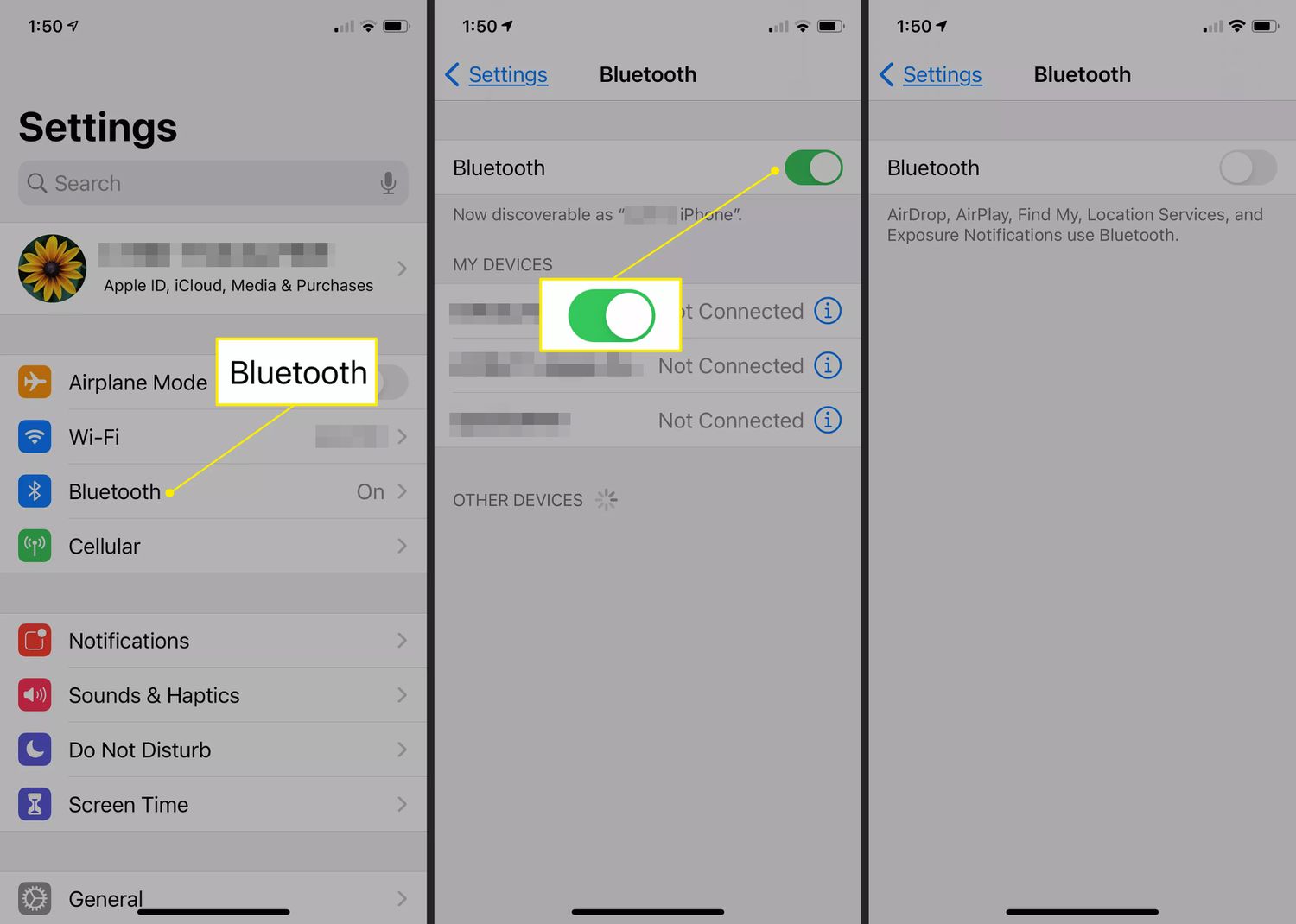
You can also use the Control Center to quickly disable and re-enable Bluetooth.
This refreshes the Bluetooth connection and may eliminate temporary communication errors.
2.2 Restartējiet savu iPhone
A simple restart can clear temporary software bugs that interfere with Bluetooth performance.
For newer iPhones:
- Press and hold the Side button together with either Volume button until the power-off screen appears, then swipe the slider to power off your iPhone.
- Wait for the device to shut down and turn it back on.
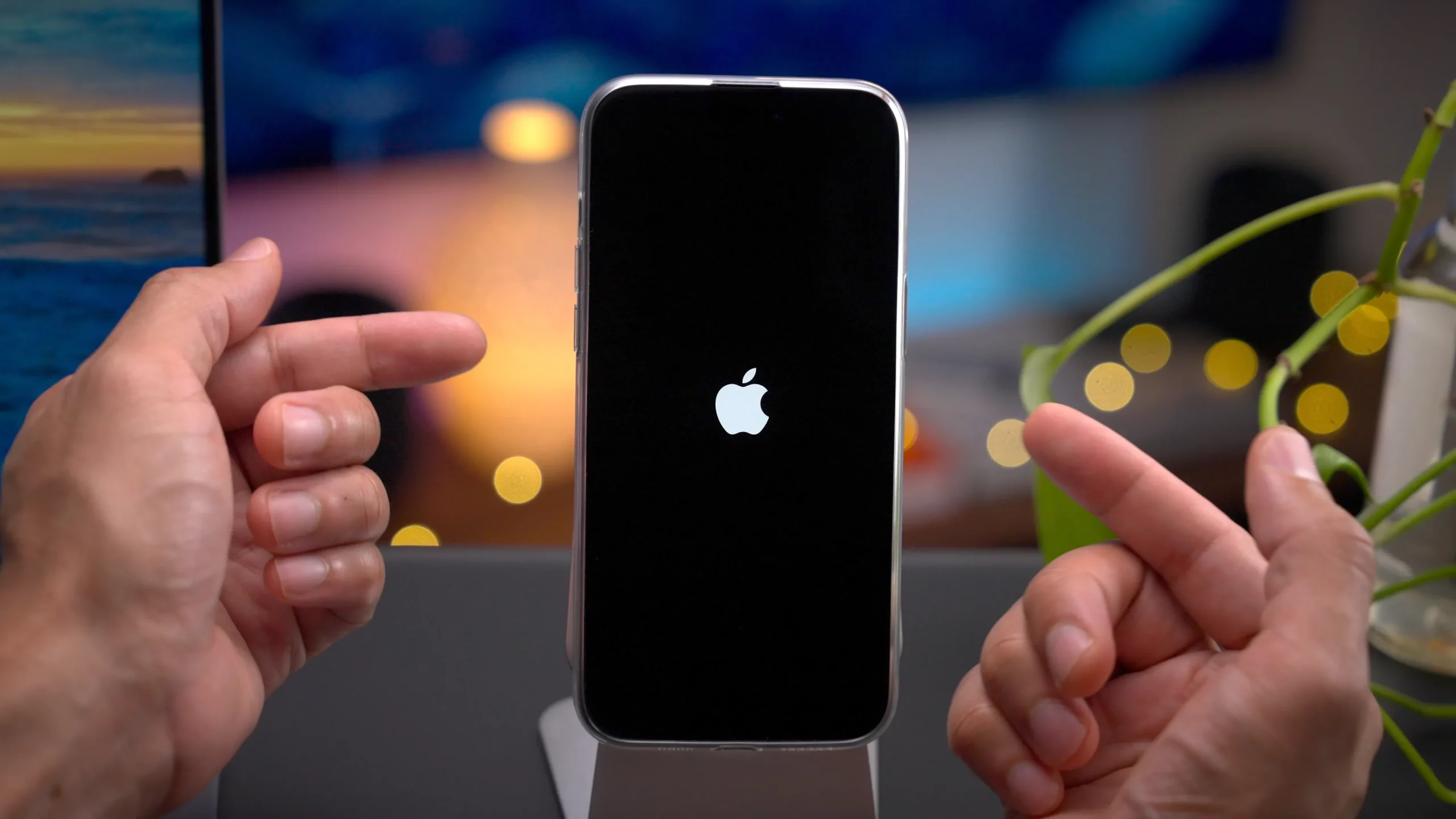
When your iPhone powers back on, pair your Bluetooth device again and check if it stays connected.
2.3 Restart the Bluetooth Device
The problem may not be your iPhone at all.
Try restarting:
- Wireless earbuds
- Bluetooth speakers
- Smartwatches
- Car infotainment systems
- Fitness trackers
Power cycling the accessory can refresh its Bluetooth module and resolve pairing issues.
2.4 Forget and Reconnect the Device
If a paired device has corrupted connection data, removing and re-pairing it can help.
Darbības:
- Atvērt Settings > Bluetooth .
- Locate the problematic device, tap the i icon beside it, select Forget This Device and confirm removal.
- Put the Bluetooth device into pairing mode and reconnect it to your iPhone.
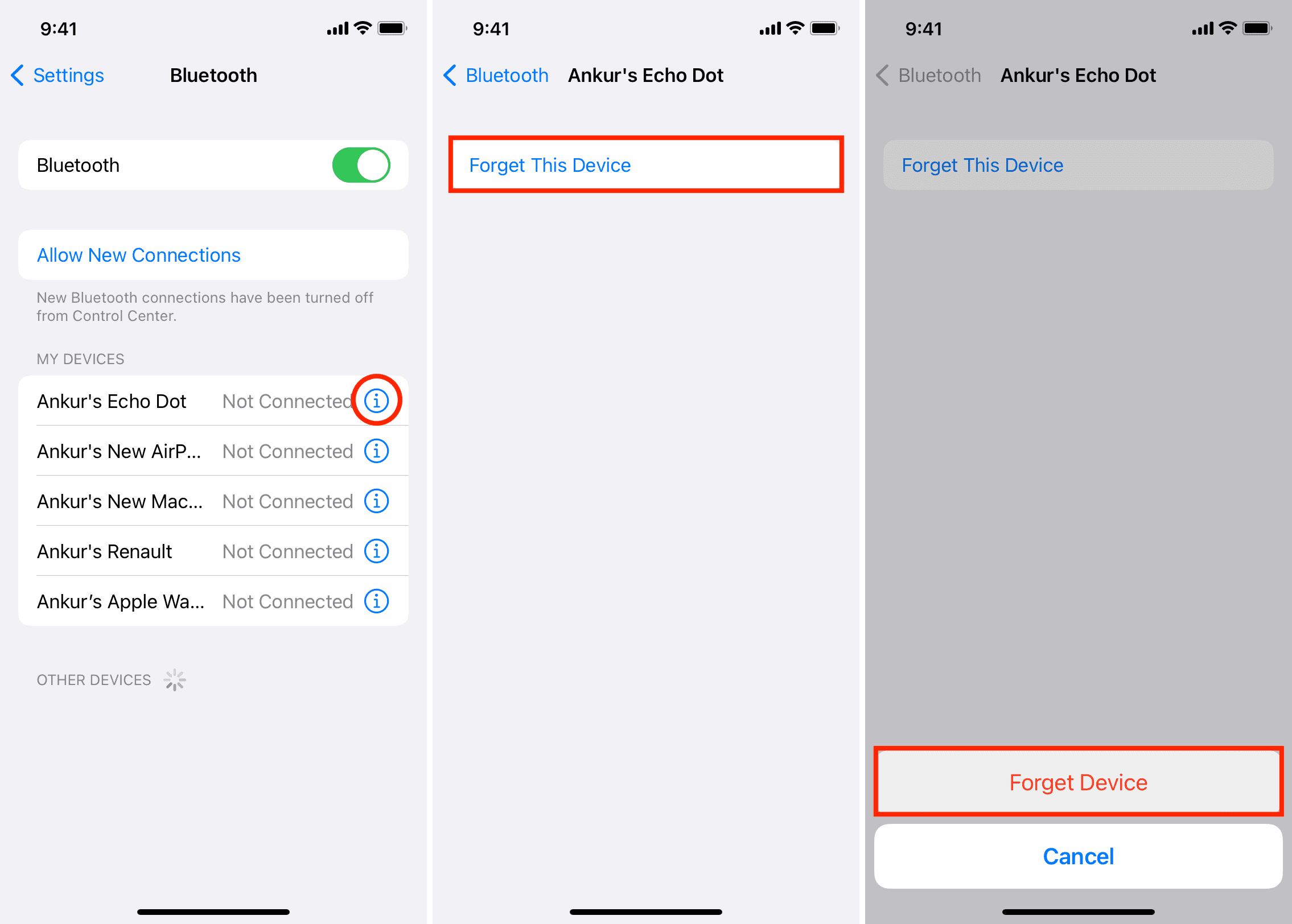
This creates a fresh Bluetooth connection profile.
2.5 Check Battery Levels
Low battery can affect Bluetooth stability.
Make sure:
- Your iPhone has sufficient battery power.
- The Bluetooth accessory is adequately charged.
Some devices automatically disconnect Bluetooth to conserve power when battery levels become critically low.
6. Update iOS
Apple frequently releases updates that include bug fixes and Bluetooth performance improvements.
To update your iPhone:
- Atvērt Iestatījumi , pieskarieties Ģenerālis and select Programmatūras atjauninājums .
- Lejupielādējiet un instalējiet visus pieejamos atjauninājumus.
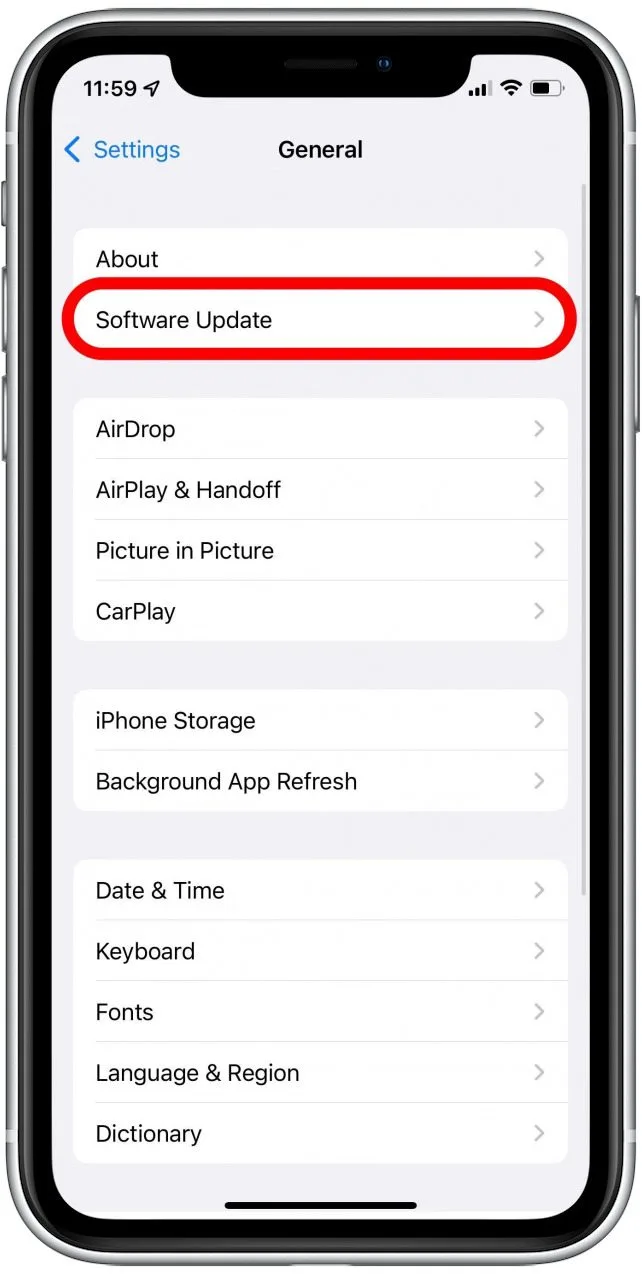
Keeping iOS current can resolve many connectivity issues.
2.7 Reduce Wireless Interference
Bluetooth operates on the 2.4 GHz frequency band, which is shared by many other wireless devices, including:
- Wi-Fi routers
- Wireless cameras
- Baby monitors
- Microwaves
- Smart home devices
Try moving away from potential interference sources and see if Bluetooth stability improves.
2.8 Reset Network Settings
Bluetooth settings are partially linked to your network configuration. Resetting network settings can eliminate hidden conflicts.
Darbības:
- Dodieties uz Iestatījumi > Ģenerālis > Pārsūtiet vai atiestatiet iPhone , choose Atiestatīt , and then tap Atiestatīt tīkla iestatījumus .
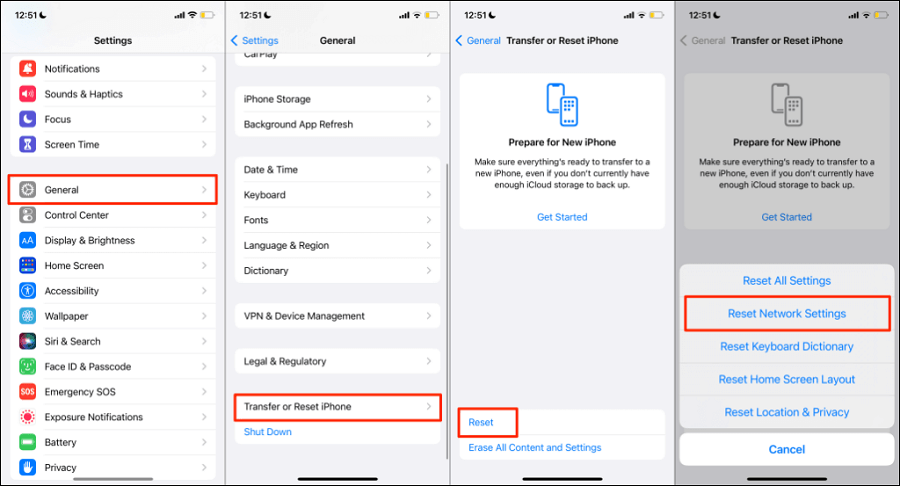
Note that resetting network settings will remove all saved Wi-Fi passwords and VPN configurations.
2.9 Disable Low Power Mode
Low Power Mode may restrict background processes and affect Bluetooth performance.
Lai to atspējotu:
- Atvērt Iestatījumi , pieskarieties Battery un izslēdziet Mazjaudas režīms .
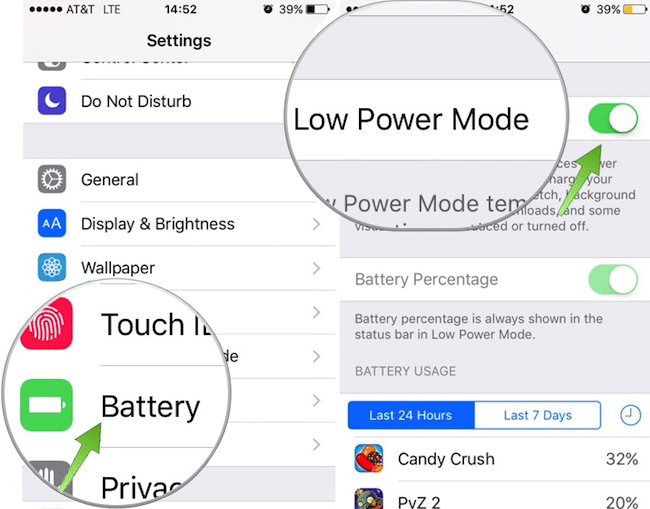
Then test the Bluetooth connection again.
2.10 Test with Another Bluetooth Device
To determine whether the issue originates from your iPhone or the accessory:
- Connect a different Bluetooth device to your iPhone.
- Test the original accessory with another phone.
This can help identify whether the problem is device-specific.
3. Advanced Fix iPhone Bluetooth Keeps Disconnecting with AimerLab FixMate
If you’ve tried all the solutions above and your Bluetooth connection still keeps dropping, the problem may be caused by deeper iOS system issues. In such cases, a professional iOS repair tool like AimerLab FixMate can provide a more comprehensive solution.
Galvenās AimerLab FixMate funkcijas:
- Fix 200+ iOS system errors
- Standard Repair mode with no data loss
- Deep Repair for severe system problems
- Enter and exit Recovery Mode with one click
- Supports the latest iOS devices and versions
How to Fix Bluetooth Disconnecting Issues Using FixMate:
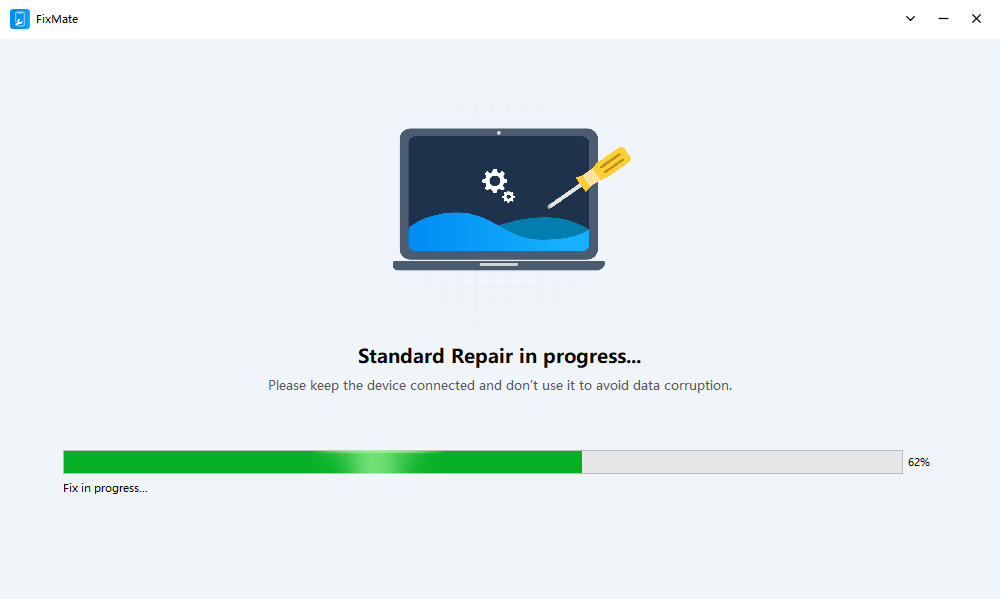
- Install and launch AimerLab FixMate on your computer, then use a Lightning or USB-C cable to connect your iPhone to the computer.
- Click Start and select Standard Repair, then FixMate will automatically detect your device and provide the appropriate firmware package.
- Download the firmware and click to begin the repair process.
- Once the procedure is complete, the iPhone will restart, you can reconnect your Bluetooth accessories and verify that the disconnection issue has been resolved.
4. Secinājums
Bluetooth disconnections on an iPhone can be frustrating, especially when they interrupt music playback, calls, workouts, or everyday tasks. Fortunately, most cases can be fixed by restarting devices, updating iOS, re-pairing Bluetooth accessories, resetting network settings, or reducing wireless interference.
However, if Bluetooth continues disconnecting despite trying all standard troubleshooting methods, the issue may stem from deeper iOS system corruption. In these situations, AimerLab FixMate offers a reliable and user-friendly solution. With its ability to repair iOS system issues without data loss, FixMate can resolve stubborn Bluetooth connectivity problems and restore your iPhone to normal operation. For users looking for a fast and effective way to fix persistent Bluetooth issues,
AimerLab FixMate
ir ļoti ieteicama.
- How to Fix iPhone File Stuck on Waiting?
- How to Resolve iPhone Speaker Grayed Out?
- How to Fix iPhone Could Not Be Restored Error 9?
- How to Fix iPhone 14 Pro Max Screen Green Flickering?
- How to Resolve iPhone Switched to Incompatible eSIM Stuck in Boot Loop?
- How to Resolve “iPhone Not Activated – Contact Your Carrier”?
- Kā izkrāpt Pokemon Go iPhone tālrunī?
- Aimerlab MobiGo GPS Location Spoofer pārskats
- Kā mainīt atrašanās vietu savā iPhone?
- 5 populārākie viltotie GPS atrašanās vietas izkliedētāji operētājsistēmai iOS
- GPS atrašanās vietas meklētāja definīcija un spoofera ieteikums
- Kā mainīt savu atrašanās vietu vietnē Snapchat
- Kā atrast/koplietot/slēpt atrašanās vietu iOS ierīcēs?